
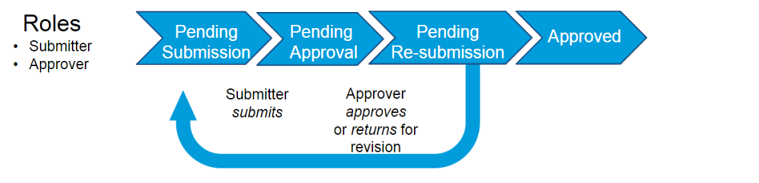
Recently, I came across a blog post discussing the poor user experience and implementation of the approval process in Content Builder. Couldn’t agree more with it.
But it inspired me to share my experience with this feature and point out a related bug (or a feature, depending on how you look at it) before the decision to use it.
So what happened?
It was a quiet Tuesday morning. I had my coffee, and my email was ready in Content Builder. I turned on Content Approval and added myself as the approver. I felt safe. What could go wrong?
Before the Problem
I opened Postman and used the API to make a new Transactional Send Definition. I thought it would go live right away. I’ve done this many times. But the status stayed Inactive. No detailed error message, as usual. No clue why. I even tried the API Update to make it “Active,” but that failed too, with the same error message.
A Long Search
My live demo with a client was coming up fast. I was nervously looking for a fix through forums. I was checking the Approvals tab and settings. I read the API docs and Content Builder Approval documentation again. Nothing helped. My client waited, and I could not say, “Here it is.”
The Simple Fix
Finally, after a few hours of trying everything I found online and failing, I decided to turn Content Approval off on the account level. Then I tried to create the send definition again. This time, it became active right away!
So, it turns out Marketing Cloud won’t let you activate a send definition via API, even if the email has already been approved. Disable content approval first, and it works.
The Hidden Trap
Feeling happy, I turned Content Approval back on, but there is a catch. That is when I saw it: every email in my account had just been automatically approved. Pending reviews? Rejections? Wiped clean.
Things I Learned
- Turn Off Approval First
If you will use an email in a Transactional Send Definition, always turn off Content Approval first. - Use Clear Names
Add –noApproval at the end of your template names. That way, you know which ones must stay not approved/open. - Make a Simple Checklist
- Turn off Content Approval
- Create your send definition (it will be active)
- Turn Content Approval back on and fix any real pending reviews
- Check Your Approvals
After you turn approval back on, look at your pending and rejected emails so nothing is missed.
Use this easy trick, and you’ll skip the panic, run smooth demos, and keep your approval queue safe. 🙂